Alerts
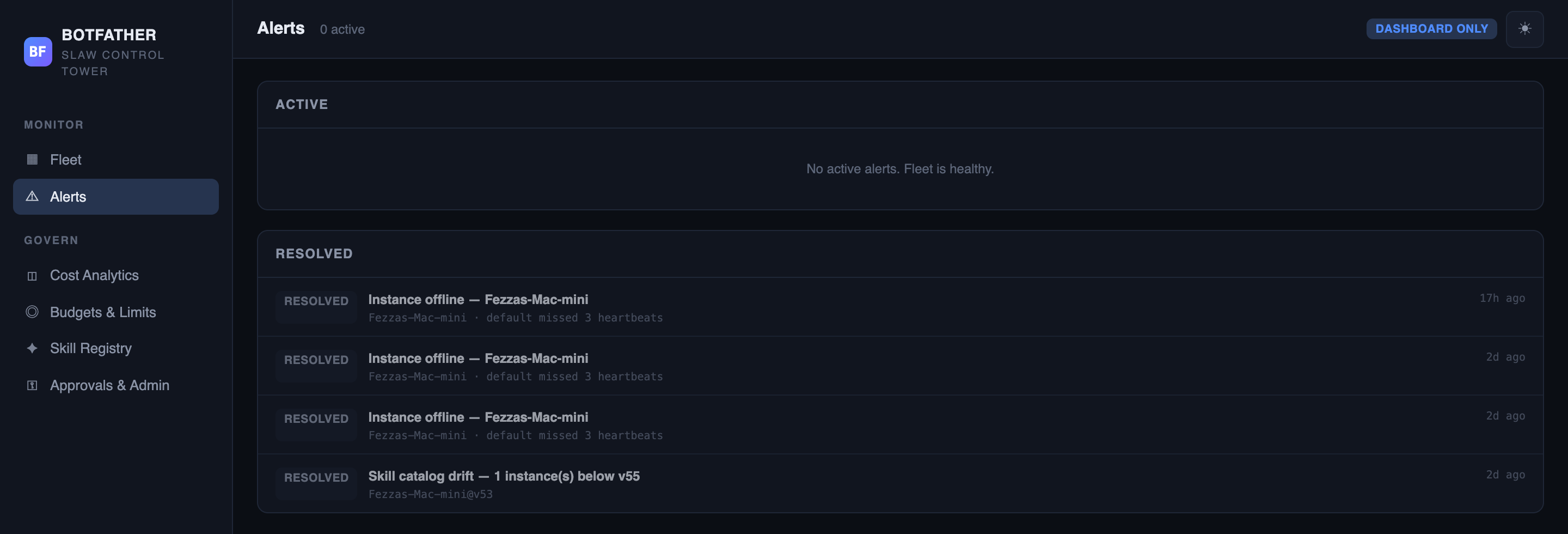
The Alerts screen surfaces fleet health problems as discrete, deduplicated events. Alerts are raised by background evaluators that run on the tower's sweeper schedule, and they resolve automatically when the underlying condition clears.
Severity levels
| Severity | Badge colour | When to act |
|---|---|---|
| CRITICAL | Red | Immediate action required — an agent is blocked or a hard budget ceiling is breached. |
| WARNING | Amber | Something needs your attention soon — a soft threshold is crossed or an instance went offline. |
| INFO | Blue | Awareness only — an instance is stale or behind on version. |
Alert types
Budget breach
Raised when a squad's spend crosses a budget threshold. Two variants:
| Rule | Severity | Condition |
|---|---|---|
| Hard budget breach | CRITICAL | A squad's month-to-date spend crossed the hard limit. If the tower limit is in Hard mode, agent runs are blocked until the month resets. |
| Soft threshold | WARNING | A squad's spend reached the soft threshold (default 80% of its monthly budget). |
The alert title identifies the squad and instance — for example: "Hard budget breach — Engineering Squad".
Tower limit
Independent of what an instance reports, the tower checks each instance's month-to-date usage against the ceiling set in Budgets & Limits on every sweeper run. It compares its own cost_facts table against the resolved limit — dollar cost for metered runs, tokens for subscription runs.
| Rule | Severity | Condition |
|---|---|---|
| Budget limit reached | CRITICAL | An instance's MTD spend or tokens reached the tower ceiling (observed ≥ ceiling). |
| Budget limit warning | WARNING | An instance's MTD spend or tokens crossed the warn threshold (observed ≥ warn% of ceiling) but is still below the ceiling. |
The detail line names the metric and progress — for example: "Control-tower cost limit reached: $48.00 of $48.00" or "Control-tower tokens limit at 85%: 8,500,000 of 10,000,000 tokens". Cost and token breaches are tracked separately, so an instance can raise both at once.
These tower-side checks are separate from the instance-reported budget facts the agent control plane emits. The tower enforces its own ceiling as defence in depth, so a Tower limit alert can fire even when the instance has not reported a breach itself.
Both auto-resolve once the instance's spend drops back below the threshold or the month resets.
Instance offline
| Rule | Severity | Condition |
|---|---|---|
| Instance offline | WARNING | An instance has missed 3 consecutive expected heartbeats. |
The status sweeper marks the instance offline and the alert evaluator raises this alert. Resolves automatically when the instance resumes reporting.
Instance stale
| Rule | Severity | Condition |
|---|---|---|
| Instance stale | INFO | An instance has been silent for more than 24 hours without being explicitly taken offline. |
Detail reads: "hostname · instanceId silent > 24h". Resolves automatically when the instance sends a heartbeat.
Spend spike
| Rule | Severity | Condition |
|---|---|---|
| Spend spike | WARNING | An instance's spend today is more than 3× its trailing 7-day daily average. |
The evaluator queries rollups_daily for the past 8 days: it compares today's aggregated cost against the average of the prior 7 days and flags the instance when today > avg × 3. Detail shows: "today $X.XX vs 7-day avg $Y.YY". Resolves automatically the next day if spend returns to normal.
Version drift
| Rule | Severity | Condition |
|---|---|---|
| Version drift | INFO | One or more instances are running a SLAW version below the highest version seen in the fleet. |
The fleet target is the maximum slawVersion reported across all enrolled instances. Detail lists which instances are behind and their current versions. Resolves when all instances have upgraded to the fleet target.
Skill catalog drift
| Rule | Severity | Condition |
|---|---|---|
| Skill catalog drift | INFO | One or more instances have not yet acknowledged the current published catalog version from Skill Registry. |
Resolves automatically once every active instance acks the current catalog version on a sync heartbeat.
Active and resolved tabs
Active — alerts that are currently raised. The count appears in the Fleet View KPI tile.
Resolved — the 20 most recently resolved alerts, dimmed. Use this to confirm that an auto-resolve occurred after a condition cleared.
Acknowledging an alert
Click Acknowledge on any active alert to mark it as seen. Acknowledging is a soft action — it does not resolve the alert or clear the underlying condition. The alert remains in the active list until the evaluator resolves it automatically.
Deduplification
Each alert type is keyed by (rule, instanceFk, squadLocalId). If the same condition persists across multiple evaluator runs, no duplicate is created — the existing alert stays active until the condition clears and the evaluator resolves it.
Next steps
- Budgets & Limits — adjust spending ceilings to prevent hard-breach alerts.
- Fleet View — see the active alert count in the top-bar KPI tile.
- Cost Analytics — investigate spend spikes with the daily chart.