Approvals & Admin
Approvals & Admin is the control surface for the enrollment gate: you approve or reject SLAW instances requesting to join the fleet, configure rules to auto-approve trusted machines, and revoke access for instances that should no longer report to the tower.
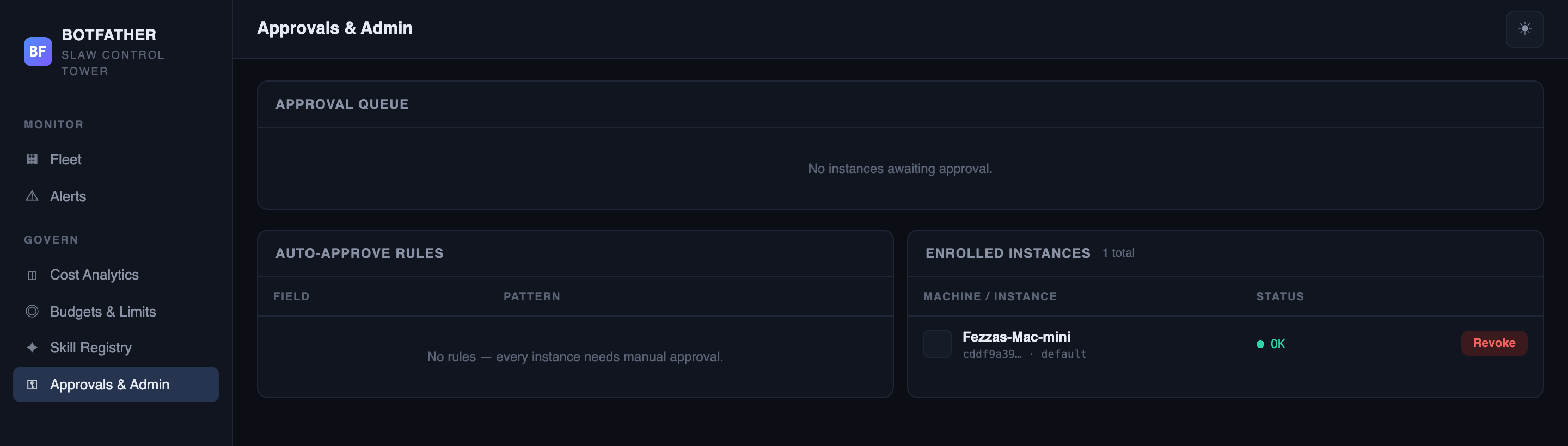
Approval queue
When a SLAW instance is configured with botfather.url and starts up, it sends an enrollment request to the tower. That request lands in the Approval Queue as a pending row.
The queue shows each pending instance with:
| Column | What it shows |
|---|---|
| Machine / Instance | Hostname and instance ID from the enrollment request. |
| Identity | First 8 characters of the machine ID (a stable hardware fingerprint). |
| SLAW | SLAW version reported in the enrollment request. |
| Requested | How long ago the request arrived. |
To decide on a request, click Approve or Reject.
- Approve — creates an API key for the instance, stores its machine fingerprint, and moves the instance to
okstatus. The instance can now send heartbeats and appear in Fleet View. - Reject — marks the request rejected. The instance cannot report until it re-enrolls.
A SLAW instance will keep retrying enrollment on each startup until it is approved or deliberately disconnected.
Auto-approve rules
Auto-approve rules let trusted machines bypass the manual queue. Each rule matches on a field/pattern pair; if an incoming enrollment matches any enabled rule, it is approved automatically.
| Column | What it shows |
|---|---|
| Field | The enrollment field to match against (e.g. hostname, machineId). |
| Pattern | A pattern to match — typically a hostname prefix or a specific machine ID. |
| Status | Whether the rule is currently ON or OFF. |
Auto-approve rules skip the manual review step. Use specific patterns (exact machine IDs or narrow hostname patterns) rather than broad wildcards to avoid approving unexpected machines.
The auto-approve rule API and configuration UI are present in the code but the exact supported field names and pattern syntax should be verified against the Botfather API reference before documenting further.
Enrolled instances
The Enrolled Instances panel lists every instance that has been approved (or that was previously active), including its current status. From here you can revoke any non-revoked instance.
Revoking an instance
Revoking an instance immediately invalidates its API key. From that point:
- The instance cannot send heartbeats or sync data to the tower.
- Existing data (spend history, squads, issues) is retained in the tower database.
- The instance remains visible in Fleet View with a
REVOKEDstatus.
To revoke, click Revoke next to the instance and confirm the prompt.
Revocation is immediate and cannot be undone. To re-admit the instance, it must go through a new enrollment and approval cycle.
You can also revoke from the Instance Detail screen using the Revoke button in the top-right.
Next steps
- Fleet View — confirmed enrollments appear here as reporting instances.
- Budgets & Limits — set spending ceilings for newly approved instances.
- Enroll an Instance — how a SLAW instance initiates enrollment.