Budgets & Limits
Budgets & Limits lets you set a fleet-wide spending ceiling and tighten it for individual instances. Limits are pushed to each SLAW instance via the set_limits directive in the heartbeat response — an instance receives its current limit on every heartbeat.
Fleet visibility is only half the job. Budgets & Limits is where the tower actively governs the fleet: it sets one ceiling — in dollars (cents) for metered API billing, or tokens for subscription plans where dollar cost is near zero — and enforces it on every enrolled instance. The metric is plan-aware, so one limit carries both ceilings and the instance applies whichever fits how that model is billed. Alongside skills and approvals, this makes Botfather a control plane for the fleet, not a dashboard.
- Botfather running and at least one instance enrolled. See Enroll an Instance.
Limit hierarchy
Tower enterprise default
  └── per-instance override  (stricter or looser than the enterprise default)
        └── per-squad budget  (set on the SLAW instance, can be stricter than the tower limit)
              └── per-agent budget  (set on the SLAW instance)
The tower limit is a ceiling: a SLAW instance can set squad and agent budgets stricter than the tower limit, but the tower limit always wins when it is the tighter constraint.
Enforcement modes
| Mode | Behaviour |
|---|---|
| Off | No limit is pushed to instances. Spend is tracked but never blocked. |
| Soft | An alert fires when spend reaches the warn threshold (default 80%). Agents are not blocked. |
| Hard | Agent runs are blocked once the ceiling is reached. The instance returns an error to the adapter. |
The tower defaults to Soft on first configuration. Switch to Hard when you need an absolute ceiling.
Setting the enterprise default
The enterprise default applies to every instance that does not have a per-instance override.
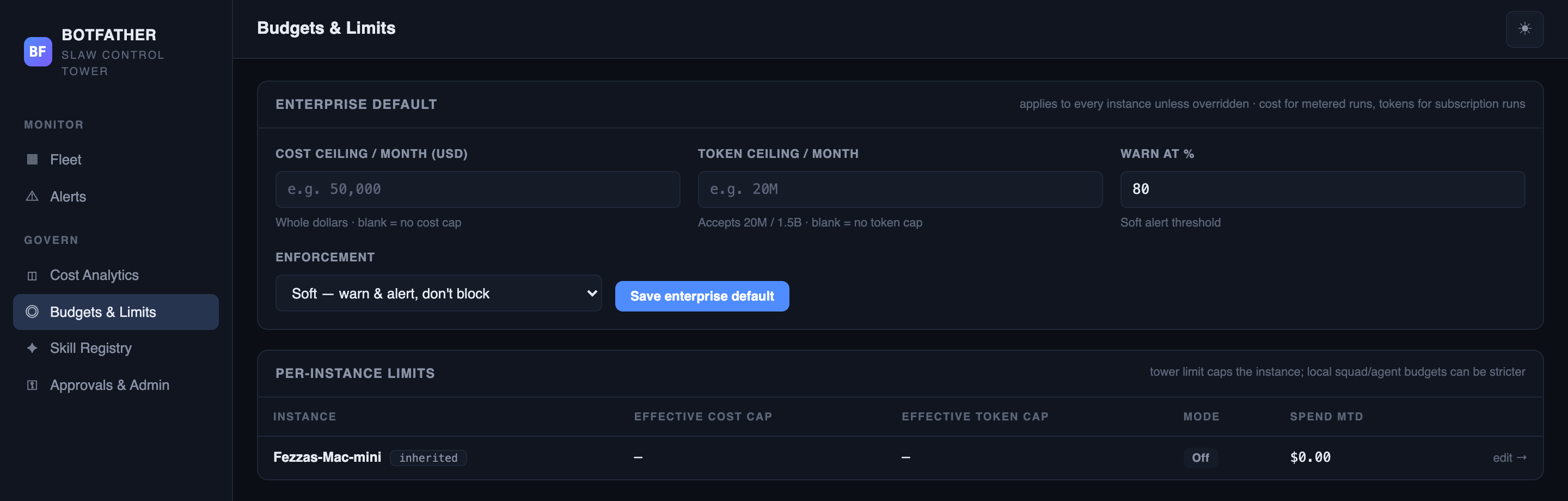
- Open Budgets & Limits in the Botfather sidebar.
- Fill in the Enterprise default form:
- Cost ceiling / month (USD) — the maximum dollar spend per calendar month. Leave blank for no cost cap.
- Token ceiling / month — the maximum token count per month. Accepts shorthand:
20M,1.5B. Leave blank for no token cap. - Warn at % — the percentage at which a soft alert fires. Default is
80. - Enforcement — choose Off, Soft, or Hard.
- Click Save enterprise default.
When saved, the confirmation reads: "Enterprise default saved — it will propagate to all instances on their next heartbeat." The version counter increments each time you save.
A token ceiling is most useful for subscription-plan instances where dollar cost is near zero. Set both ceilings to cover metered and subscription billing simultaneously.
Setting a per-instance override
Per-instance overrides let you apply a different ceiling to a specific instance. An override can be stricter or more permissive than the enterprise default.
- In Budgets & Limits, find the instance in the Per-instance limits table and click edit →. Alternatively, open the instance in Instance Detail and use the Budget limit panel.
- Click Set override (or Edit override if one exists).
- Fill in the cost ceiling, token ceiling, warn threshold, and enforcement mode.
- Leave a field blank to inherit the enterprise default value for that field.
- Click Save override.
When saved, the confirmation reads: "Override saved — pushes to the instance on its next heartbeat."
To remove the override and revert to the enterprise default, click Clear override.
Per-instance limits table
The table in Budgets & Limits shows the effective limit for every enrolled instance — effective means the override is shown when one exists, otherwise the enterprise default.
| Column | What it shows |
|---|---|
| Instance | Hostname with an override or inherited tag. |
| Effective cost cap | The monthly cost ceiling currently active for this instance. |
| Effective token cap | The monthly token ceiling currently active. |
| Mode | Current enforcement mode. |
| Spend MTD | Month-to-date spend with a percentage-of-cap sub-figure. |
How limits are delivered
When you save a limit, the tower stores it in its database. On the next heartbeat from the instance, Botfather includes a set_limits directive in the heartbeat response body. SLAW reads this directive and applies the ceiling to all agent runs for that instance until the next limit update arrives. The limit version is a monotonic counter per instance — SLAW ignores directives whose version is lower than its current applied version.
Verification
Confirm the limit took effect:
- The per-instance limits table reflects the change. After saving, the instance's Effective cost cap / Effective token cap / Mode columns show the new values, tagged override or inherited as expected.
- The version counter incremented. Each save bumps the monotonic limit version. A higher version is what tells SLAW to apply the new ceiling.
- The instance applied it on its next heartbeat. Limits propagate via the
set_limitsdirective on the next ~60-second heartbeat — not instantly. Give it a cycle, then confirm on Instance Detail that the effective limit matches. Under Hard enforcement, agent runs on that instance are blocked once spend reaches the ceiling; under Soft, a budget alert fires at the warn threshold instead.
Next steps
- Alerts — budget-breach and spend-spike alerts fire automatically when limits are crossed.
- Cost Analytics — review spend trends before setting ceilings.
- Instance Detail — check the current effective limit for a specific instance.