Fleet View
The Fleet screen is your first stop when you open Botfather: it shows every enrolled SLAW instance at a glance — health status, squad count, spend, and alert count — and lets you drill into any instance with one click.
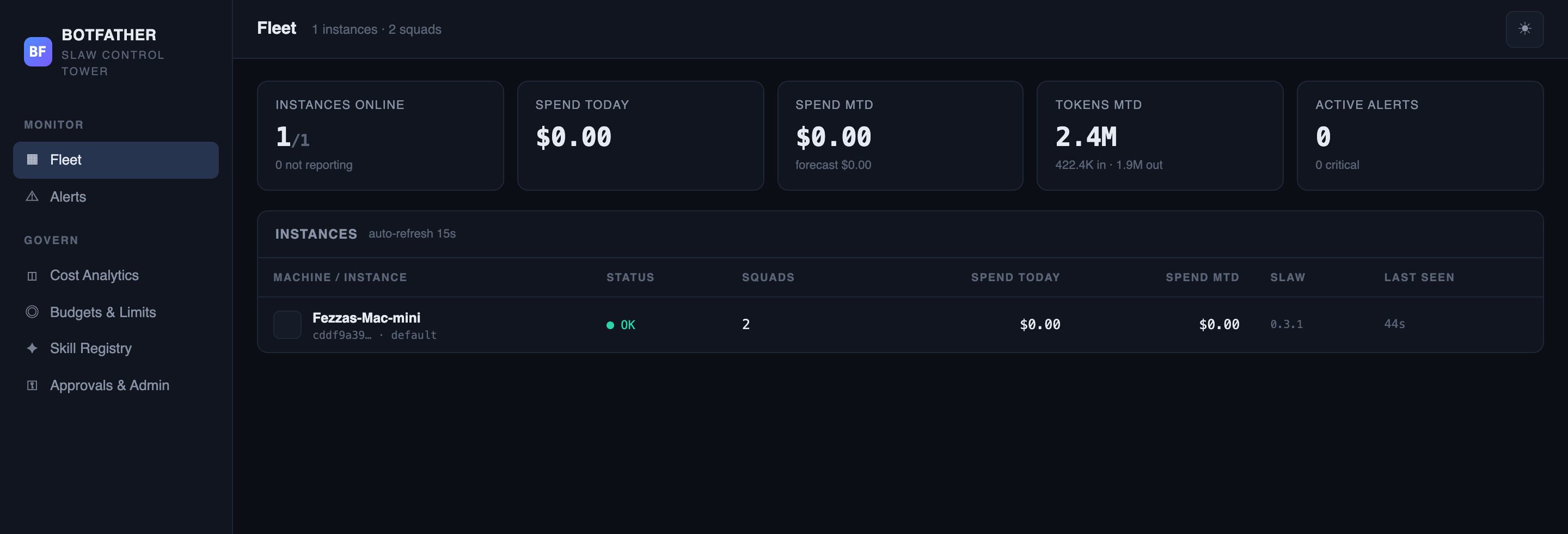
KPI tiles
Five tiles summarise the network at the top of the screen. The page auto-refreshes every 15 seconds.
| Tile | What it shows |
|---|---|
| Instances Online | Count of instances with status OK out of total enrolled. Sub-line shows how many are not reporting. |
| Spend Today | Total spend across all instances since UTC midnight. |
| Spend MTD | Month-to-date spend with a linear end-of-month forecast beneath it. |
| Tokens MTD | Sum of input + output tokens MTD. Sub-line breaks it into in · out. |
| Active Alerts | Total active alerts. Turns red when any are present; sub-line shows critical count. |
Instances table
Below the tiles, a table lists every enrolled instance. Click any row to open Instance Detail.
| Column | What it shows |
|---|---|
| Machine / Instance | Hostname, first 8 chars of the machine ID, and the instance ID. |
| Status | See status values below. |
| Squads | Number of squads last reported by this instance. |
| Spend Today | Cost for this instance since UTC midnight. |
| Spend MTD | Month-to-date cost for this instance. |
| SLAW | SLAW version string reported in the last heartbeat. |
| Last Seen | How long ago the most recent heartbeat arrived (seconds / minutes / hours / days). |
Instance status values
| Status | Badge | Meaning |
|---|---|---|
ok | OK | Reporting normally. |
offline | OFFLINE | Missed three consecutive expected heartbeats. |
stale | STALE | Silent for more than 24 hours but not yet marked offline. |
pending | PENDING | Enrollment request received; awaiting Operator approval. |
rejected | REJECTED | Enrollment was rejected. |
revoked | REVOKED | Previously enrolled; API key has been invalidated. |
An empty fleet table means no instances have been approved yet. Go to Approvals & Admin to approve a pending enrollment.
What the fleet does not show
The Fleet screen shows metadata — status, spend, version, squad count. Issue bodies, agent instructions, and adapter credentials are never synced to the tower and do not appear here. To see issue titles and agent details, click through to Instance Detail.
Next steps
- Instance Detail — drill into squads, agents, issues, and token usage for a single instance.
- Alerts — review active alert conditions across the fleet.
- Approvals & Admin — approve or reject pending enrollment requests.