Instance Detail
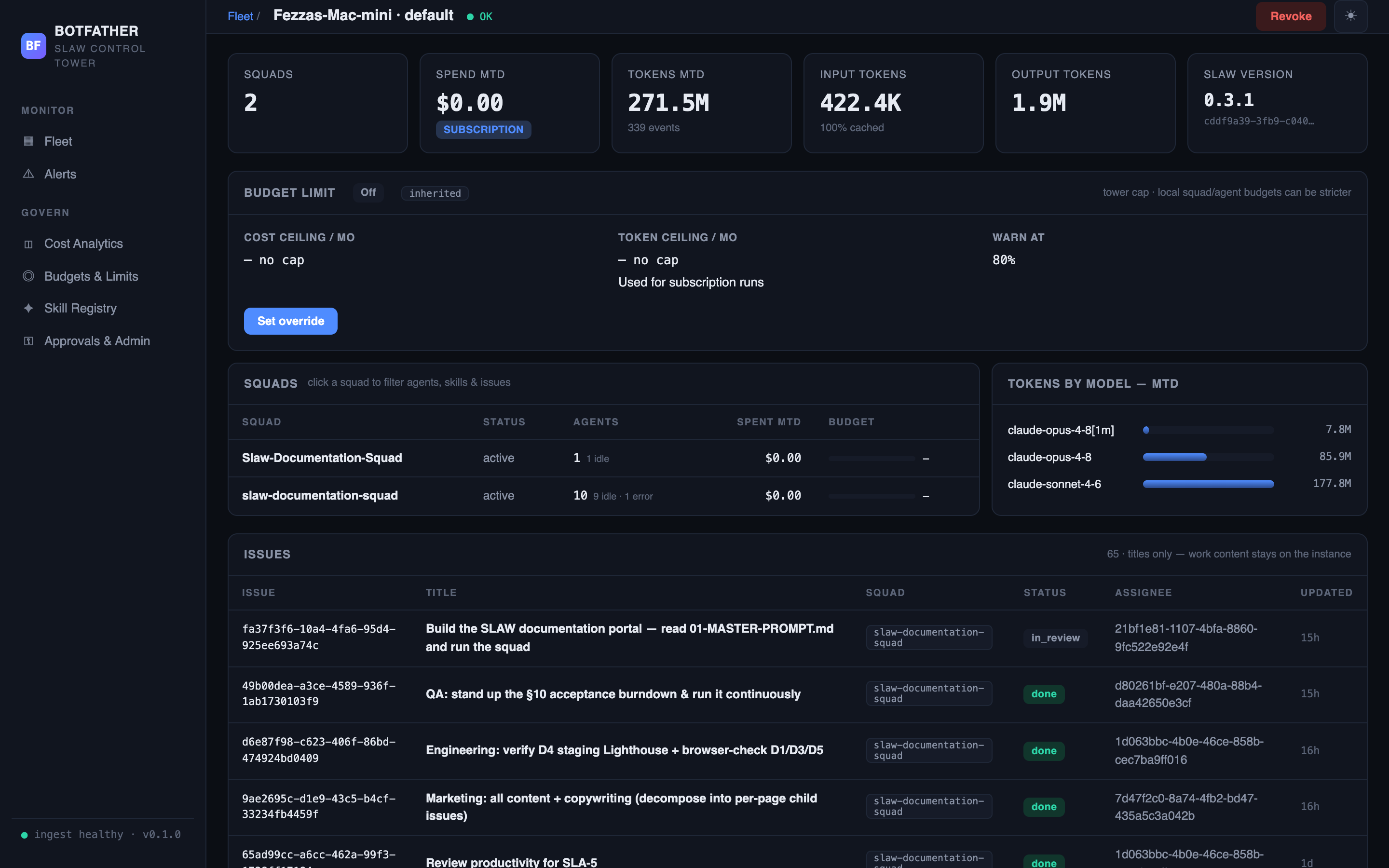
The instance detail screen gives you a read-only window into a single enrolled SLAW instance — its squads, agents, active issues, token consumption, and tower-governed budget limit. Navigate here by clicking any row in Fleet View.
- At least one instance enrolled and approved. See Enroll an Instance.
Token tiles
Six KPI tiles appear at the top of the screen and refresh every 15 seconds.
| Tile | What it shows |
|---|---|
| Squads | Number of squads last reported by this instance. |
| Spend MTD | Month-to-date spend for this instance. Shows a SUBSCRIPTION badge instead of a "today" figure when subscription billing dominates (i.e. dollar cost is near zero). |
| Tokens MTD | Total tokens consumed this month. Sub-line shows the event count. |
| Input Tokens | Raw input tokens MTD. Sub-line shows the cache-hit percentage: (cachedInputTokens / (inputTokens + cachedInputTokens)) × 100. |
| Output Tokens | Output tokens MTD. |
| SLAW Version | The SLAW version last reported by this instance, with a partial machine ID beneath it. |
Subscription billing
When an instance's agents run primarily on a subscription plan (e.g. Claude Pro/Max), the dollar cost may be reported as $0. In that case the Cost by Model panel switches from dollar bars to token-weighted bars, and the Spend MTD tile shows the SUBSCRIPTION badge rather than a dollar figure.
Budget limit panel
Directly below the tiles, the Budget limit panel shows the tower-governed spending ceiling for this instance. It displays:
- Cost ceiling / mo — the effective monthly cost cap in USD, with the current spend percentage.
- Token ceiling / mo — the effective monthly token cap (used when subscription runs dominate).
- Warn at % — the threshold at which a soft alert fires.
- Enforcement mode —
Off/Soft (warn)/Hard (block). - An override or inherited tag — whether this instance has a per-instance override or is inheriting the enterprise default.
To change the limit, click Set override (or Edit override). See Budgets & Limits for the full limit hierarchy.
Squads panel
A table lists each squad the instance has reported. Click a squad row to filter the Issues, Agents, and Skills panels below to that squad only; click again to clear the filter.
| Column | What it shows |
|---|---|
| Squad | Squad name. |
| Status | Squad status as last reported. |
| Agents | Total agent count with a breakdown by status (e.g. 2 running · 1 idle). |
| Spent MTD | Month-to-date spend for this squad. |
| Budget | A fill bar showing spend as a percentage of the squad's monthly budget. Turns amber at 80% and red at 100%. A dash means no budget is set. |
Cost by Model panel
A horizontal bar chart shows month-to-date cost broken down by AI model. When subscription billing dominates, bars are weighted by token count instead of dollar cost. The panel heading changes accordingly: Cost by Model — MTD vs Tokens by Model — MTD.
Issues panel
A filterable table lists issue titles reported by this instance. It is squad-filterable (use the squads panel above to scope it).
Issue titles, identifiers, statuses, and assignee IDs are synced to the tower for observability. Issue bodies, comments, and attachments stay on the instance and are never sent to Botfather.
| Column | What it shows |
|---|---|
| Issue | Local issue identifier. |
| Title | Issue title. |
| Squad | The squad this issue belongs to. |
| Status | Current status (in_progress, done, todo, etc.). |
| Assignee | Local agent ID of the current assignee, or —. |
| Updated | How long ago the issue was last updated. |
Agents panel
Lists every agent the instance has reported. Click any row to expand a read-only view of the agent's instructions, role, adapter type, and budget.
Adapter credentials and runtime configuration stay on the instance and are never synced to the tower.
| Column | What it shows |
|---|---|
| Agent | Agent name and optional title. |
| Role | Agent's role in its squad. |
| Squad | Squad this agent belongs to. |
| Status | Agent status (running, active, idle, paused, error). |
| Adapter | Adapter type key (e.g. claude_local, codex_local). |
| Budget MTD | Spent / budget for the month, or just spent if no budget is set. |
Skills panel
Lists squad-scoped skills installed on this instance, with name, key, description, source type, and trust level. Skills with source type tower were pushed from Botfather's Skill Registry. Skills are read-only here; to manage the tower catalog, go to Skill Registry.
Revoking an instance
The Revoke button at the top-right immediately invalidates the instance's API key. The instance loses the ability to report heartbeats; existing data is retained. Revocation cannot be undone — re-enrollment requires a new enrollment flow. See Approvals & Admin.
Next steps
- Budgets & Limits — set or adjust the fleet-wide and per-instance spending ceilings.
- Skill Registry — manage the tower-mastered skills catalog and push updates to instances.
- Fleet View — return to the fleet overview.